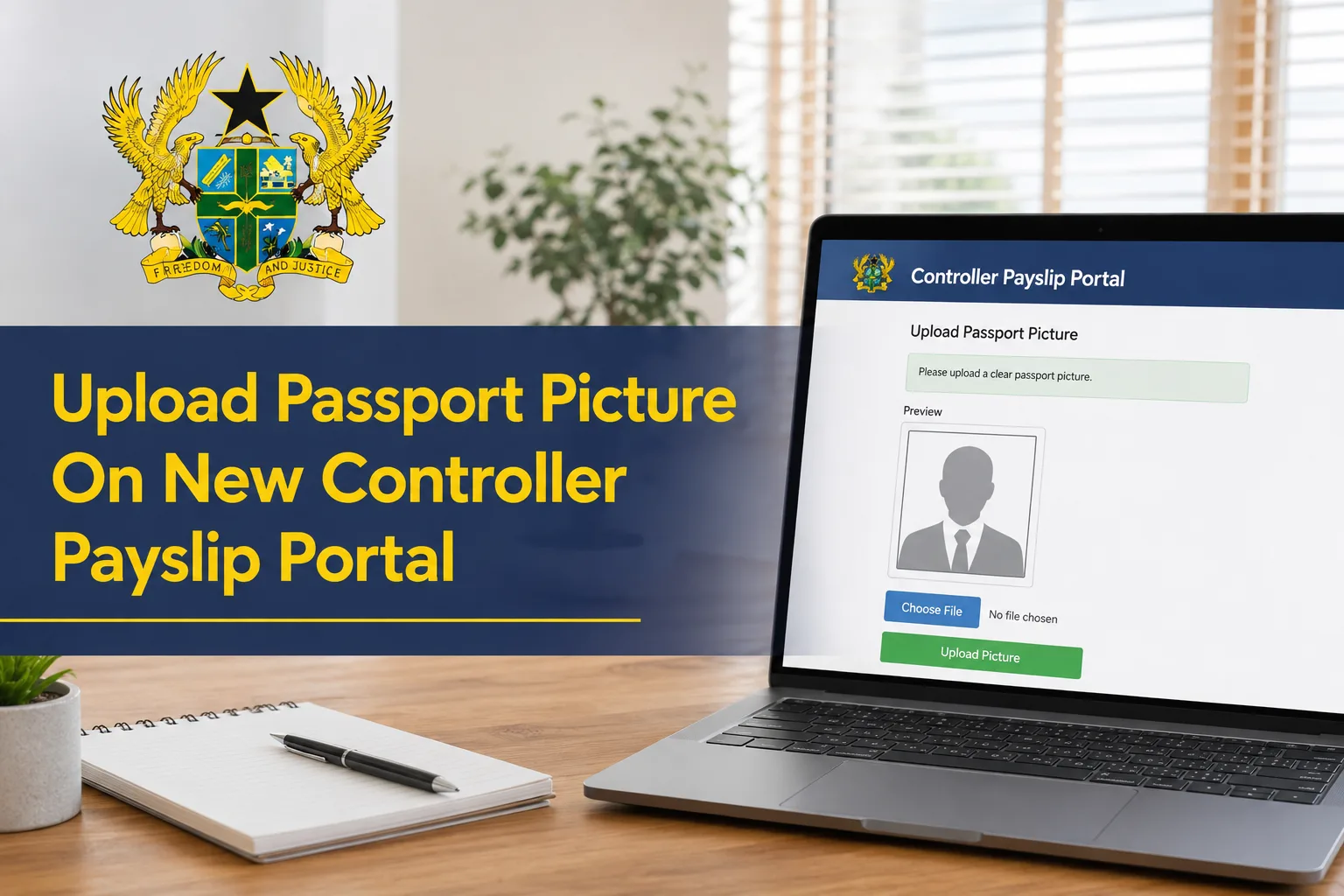

The Controller and Accountant-General’s Department (CAGD) has introduced a new feature on the GOG Employee PayServices portal that allows government employees to upload passport photographs directly to their ePayslip profiles.
This update is part of efforts to improve employee identification, payroll verification, and overall security on the new ePayslip system. Staff members whose passport pictures are missing from their payslips have been directed to upload their photos before the system deadline.
The official portal for this process is: GOG Employee PayServices Portal
Why Employees Must Upload Their Passport Pictures
According to the Controller and Accountant-General’s Department, all government workers are expected to have passport photographs attached to their profiles on the new ePayslip portal.
Uploading a passport picture helps to:
- Improve staff identification on payslips
- Enhance payroll security and verification
- Ensure accurate employee records
- Allow employees to generate payslips with their photos attached
- Support official payroll documentation processes
Employees are encouraged to complete the upload process early before the portal closes for updates.
Requirements Before Uploading Your Passport Picture
Before beginning the upload process, employees should ensure they have:
- Successfully registered on the new CAGD ePayslip portal
- Their Staff ID and password
- A clear passport-size photograph
- A stable internet connection
- Access to a smartphone or computer
Important Passport Photo Requirement
The uploaded passport picture must have:
- A white background, or
- A plain solid-colored background
Any photo that does not meet these background requirements may be rejected by the system.
Step-by-Step Guide to Upload Passport Picture
Step 1: Visit the Official Portal
Open your browser and visit the official GOG Employee PayServices platform: gogepayservices.com
Step 2: Log In to Your Account
Enter the following details:
- Staff ID
- Password
Click on Sign In to access your dashboard.
Step 3: Locate Your Profile Section
After logging in successfully:
- Move to the top-right corner of the dashboard
- Click on your name/profile section
Step 4: Open “View Profile”
From the dropdown menu:
- Click on View Profile
This will open your employee profile page.
Step 5: Click the Empty Photo Space
Locate the blank picture area on your profile page and click on it.
The system will allow you to:
- Take a new picture instantly, or
- Upload an existing photo from your device
Step 6: Upload or Capture Your Passport Picture
Select your preferred option and upload the image.
Ensure the photo is:
- Clear
- Properly centered
- Taken against a white or solid background
Step 7: Crop the Photo Properly
After uploading:
- Use the crop tool provided on the portal
- Adjust the picture to fit correctly within the frame
This ensures the image appears properly on your payslip.
Step 8: Save the Picture
Once satisfied with the preview:
- Click Save
Your passport picture will now be attached to your profile successfully.
How to Generate a Payslip With Your Passport Picture
After uploading the photo, employees can generate payslips that include their passport pictures.
Steps to Generate Payslip With Photo
- Visit the portal and log in
- Go to the dashboard menu
- Click on Payslip
- Select the preferred month and year
- Under Type, select Include Photo
- Click Generate
Your payslip will instantly appear as a PDF document with your newly uploaded passport picture attached.
Benefits of the New CAGD ePayslip Portal
The new GOG Employee PayServices system offers several advantages to government employees, including:
- Faster payslip access
- Secure employee authentication
- Online payroll management
- Easy PDF downloads
- Mobile-friendly access
- Improved payroll transparency
- Photo-enabled payslip generation
The new portal replaces the old gogpayslip.com system and provides a more modern and secure payroll experience for public sector workers across Ghana.
Common Issues Employees May Encounter
Photo Upload Fails
- Ensure the internet connection is stable
- Confirm the image format is supported
- Use a clear image with a white background
Picture Not Showing on Payslip
- Regenerate the payslip after saving the image
- Ensure “Include Photo” is selected before generating
Unable to Log In
- Double-check Staff ID and password
- Use the “Forgot Password” option if necessary
Official Portal for Uploading Passport Pictures
Government employees can access the new system through: gogepayservices.com
Official GOG Employee PayServices Website
Conclusion
The Controller and Accountant-General’s Department has made it easier for government employees to update their payroll profiles by introducing the passport picture upload feature on the new ePayslip portal.
By following the steps outlined above, employees can quickly upload their passport photographs, update their profiles, and generate payslips with their pictures attached. All staff are encouraged to complete the process promptly to avoid future payroll inconveniences and maintain accurate records on the new CAGD system.
Published By: Justice Donkoh | GESHub.org